How to Limit Emails Per Hour in WHM?
In this tutorial, we are going to see how to set maximum number of emails that can be send from an account in an hour. With WebHostingPeople, you could send up to 200 emails per hour. Have you ever wondered why there is a limit on sending emails? Sending a huge number of emails may be seen as spamming and can ruin the email reputation.
If the email reputation is poor, some servers will even refuse to receive emails from your server and the emails will be bounced back. To avoid these type of issues, a limit can be set on emails that are being sent hourly. There are two methods to help implement an email limit
1) Set server wide email limit.
2) Set email limit for individual accounts.
In the first method, we can set a maximum hourly emails per domain, so that it will affect all accounts on the server. This can be done from the WHM. Please note that you can’t set this if you do not access to WHM. This means if you have standard web hosting you will not be able to perform this action. You will be able to perform this if you have a VPS, Quick server or a Dedicated Server with cPanel.
Set server wide email limit
The steps to set the hourly email limit in this way are listed below.
1) Login to the WHM.
You can login to the WHM by appending WHM port number following a “:” to the hostname of the server or the IP address of the server. If you’ve not pointed the hostname of the server to the IP address of the server by adding appropriate “A” records, logging in with the hostname will not work. The IP address of a VPS can be found in your my.WebHostingPeople portal located at https://my.WebHostingPeople.net >> VPS >> View VPS.
To login to the WHM with hostname, please enter https://your.hostname.tld:2087
To login to WHM with the IP address, please enter https://1.1.1.1:2087 (Replace “1.1.1.1” with the IP address of the server).
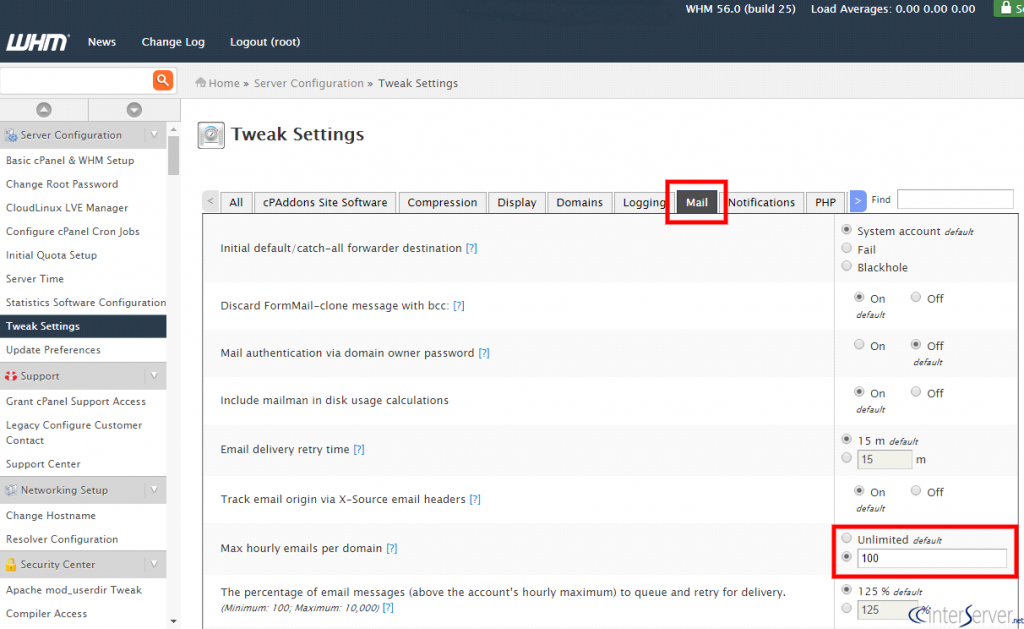
2) Once logged into the WHM, please go to ‘Tweak Settings’ under the section ‘Server Configuration’.
3) Locate and go to the tab “Mail”
4) You can set the desired value in the text box next to the “max hourly emails per domain”. Please remember to select the radio button near the text box, so that you can write into the box. To disable the limit and allow the accounts to send unlimited emails, please select the radio button “Unlimited”.
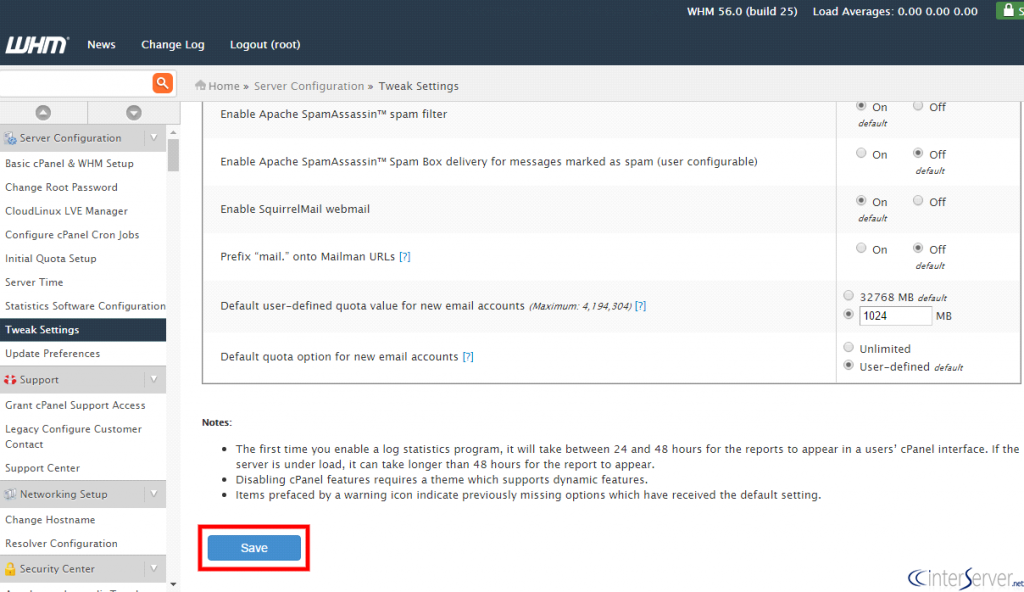
5) When the desired value is entered, please click on the button ‘Save’ in the bottom.
Set email limit for individual accounts
There is another way to set email limits. This can be done by modifying indiviual cPanel accounts. Please note that this will affect the particular cPanel account on which we are setting the limit. Other accounts will be able to send emails as configured in the tweak settings as we’ve seen above.
To apply the limits by modifying a cPanel account, please follow the below steps.
1) Login to the WHM. (You could refer the instruction on above method to login to WHM).
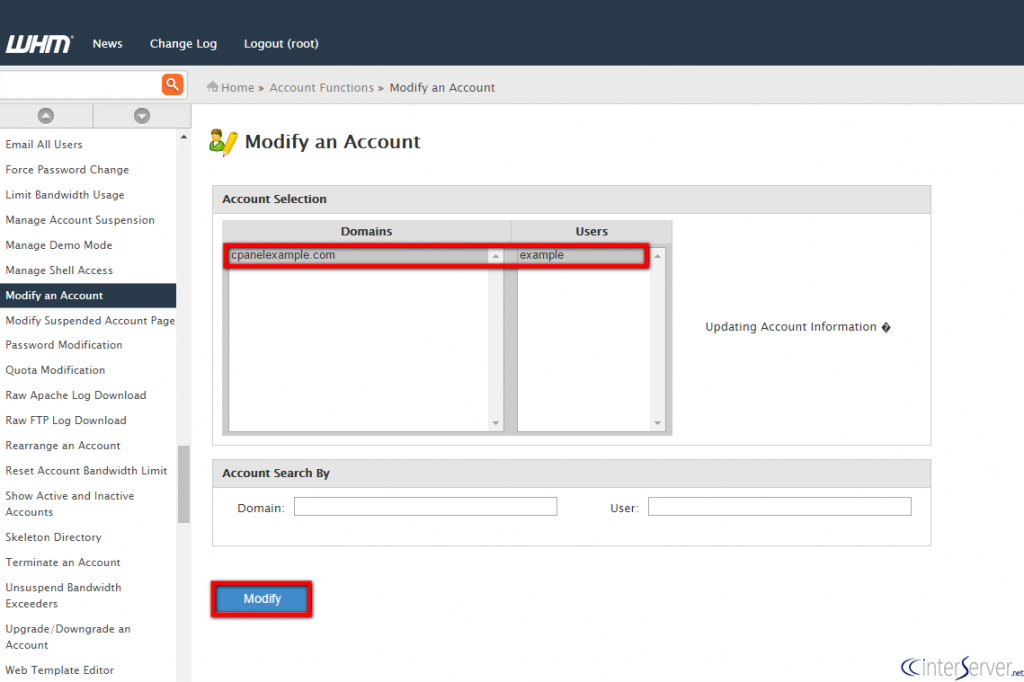
2) Go to “Modify an Account” under the section “Account Functions”
3) Select the account on which you want to set the email limit and click on the ‘Modify’ button.
4) Enter the desired value in the text box as shown in the screen shot.
Please remember to select the radio button near to the text box, so that you can write into the box. To disable the limit and allow the accounts to send unlimited emails, please select the radio button “Unlimited”. The limits should be below or equal to the limit set on the tweak settings.
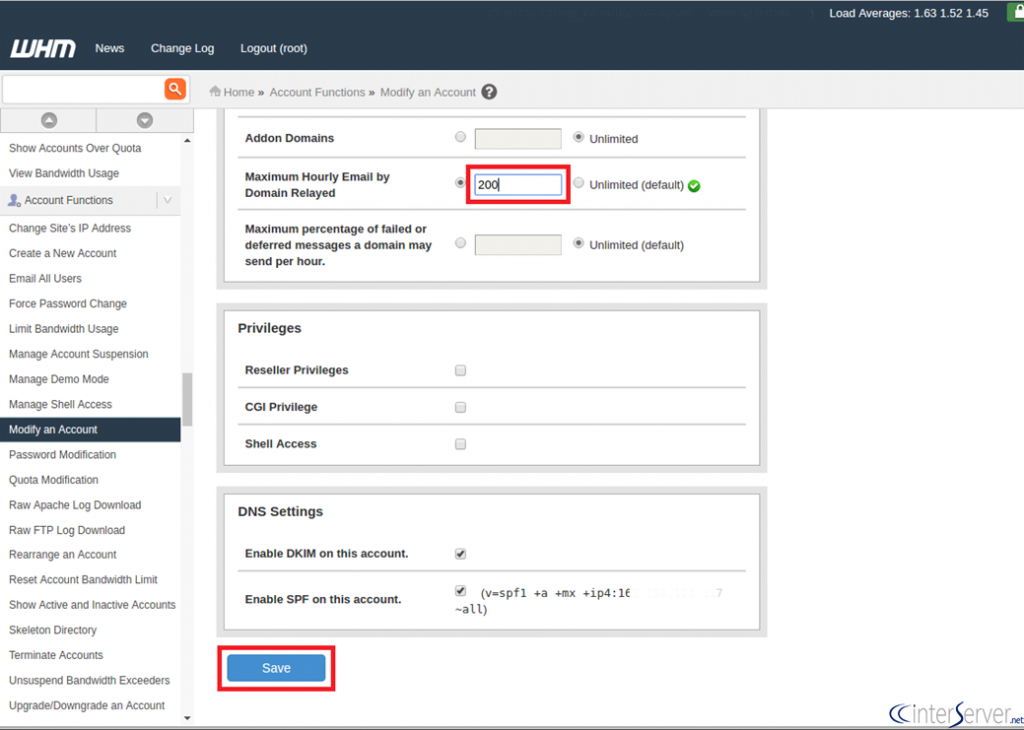
5) Once the changes are made, please click on ‘Save’ button.